- Reading time:
- 4 minutes
Share this post
Kodesage CLI: Build and Ship From Your Terminal or JetBrains IDEs
22 July 2026

Sandra Schroeter
Senior Product Marketing Manager
Whether developers live in a terminal or an IDE, the Kodesage CLI brings the same trusted knowledge and a native AI coding assistant directly to them, generating code, writing tests, and committing changes without leaving their workflow.
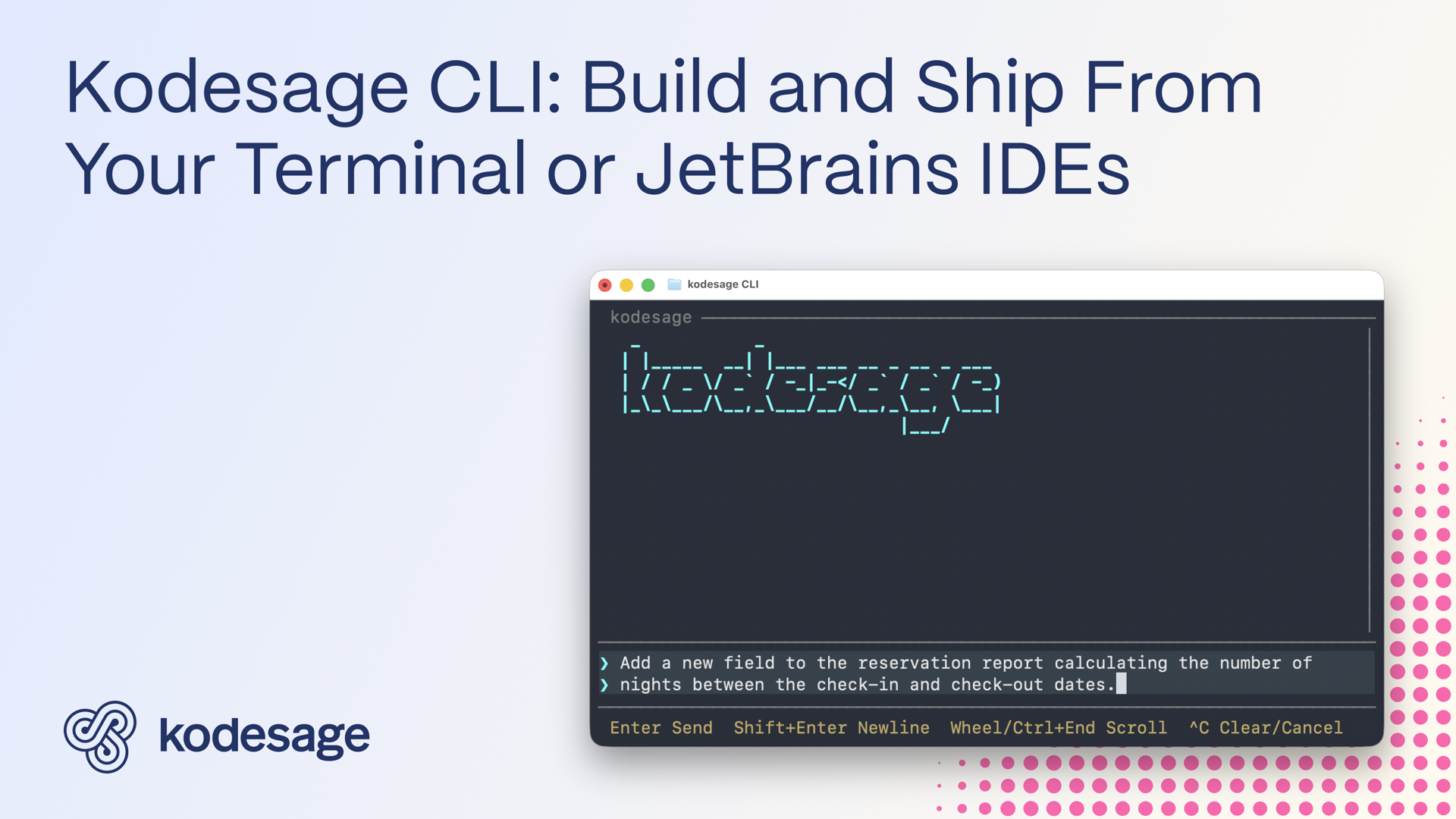
There are two kinds of developers: those who live in an IDE, and those who live in a terminal. The CLI brings Kodesage’s knowledge, plus a native AI coding assistant, into both.
The CLI has access to the same knowledge base as the Ask Kodesage web UI and the MCP server, providing insights into the codebase, documentation, databases, and issue tickets. And because it runs directly on a developer's machine, it can read and edit files, and run commands using command-line tools installed locally, including git.
What the CLI automates
The CLI’s coding assistant automates development tasks right there in the terminal, without switching tools, including:
- Generating and refactoring code
- Reviewing code and explaining how it works
- Building new features
- Analyzing and fixing bugs
- Writing tests
- Committing changes

Example: Adding a field to a report
A developer wants to add a new field to a report. Rather than starting from scratch, they start an interactive CLI session and describe the change in natural language. The AI coding assistant pulls up Kodesage's understanding of the project, generates the code to add the field, following existing conventions and logic, and applies it directly to the local files.
If the change requires a decision, for example, how a specific piece of functionality should be implemented, that decision stays with the developer, and the CLI acts on it.
Once reviewed, the developer can ask the assistant to commit the change, supporting the workflow end-to-end.
Validating the change
The CLI's coding assistant can write unit tests, integration tests, and reusable test utilities. It can also run non-interactively, from a script or a CI pipeline, so a change can be checked automatically as part of a test suite.
For these scripted and CI workflows, the CLI can return output as structured JSON, rather than plain text. That makes the CLI's output machine-parseable, so tools in the pipeline can consume it directly.
The CLI's role in migrations
Transforming code from an original system to a new target architecture by hand is slow, tedious work. The same capabilities that power everyday development can power migrations too: a developer describes the feature or change in natural language, and the assistant generates the code. The same build-and-commit cycle now accelerates migration instead of maintenance.
Bringing Kodesage into IDEs
JetBrains and Zed have been collaborating to develop the Agent Client Protocol (ACP) “standardizing communication between code editors/IDEs and coding agents.” Using ACP, the Kodesage CLI becomes a custom agent that sits in the IDE alongside a project, providing the same capabilities as in the terminal.
Security and control

Security follows the same standard as the entire Kodesage platform. The CLI runs on a controlled model, with support for on-premises and air-gapped deployment.
File edits and shell commands run through a sandbox wrapper that ensures that the Kodesage AI agent can only access and execute allowed files and commands. It also prevents the agent from exfiltrating secrets and harming the host environment. The sandbox is controlled by configurable policies, so developers decide exactly what the agent is allowed to do.
In addition, the CLI only deploys to production once a developer reviews and approves the change, ultimately accelerating the work, but leaving the decision to ship with the developer. Every action also remains available for review.
Getting started
The Kodesage CLI runs on Linux and macOS as well as WSL 2. It can easily be installed using a single command; no Python installation, virtual environment, or additional setup required.
The CLI only needs your server URL and a personal access token, and it is ready to use. For your convenience, you can copy the install command from the Kodesage web UI with the option to automatically create an access token.
Help is available using /help inside the CLI and the command reference can be found by running kodesage -h.
Closing the development loop
Ask Kodesage, the MCP server, and the CLI all draw on the same knowledge. What sets the CLI apart is that it can act on that knowledge directly by generating code, running tests, and committing changes.
Bring it into your own projects, and it's as familiar with your code as all of your developers, past and current, combined, helping everyone on the team to build and ship faster, directly from their terminal or JetBrains IDE.
Why choose Kodesage?

Deep Legacy Code Intelligence
Kodesage supports legacy stacks like Oracle Forms, COBOL, PowerBuilder, SAP, PL/SQL, and also modern stacks.

Secure On-premise Deployment
Single tenant application, offering both VPC and fully on-premise deployments meeting the strictest security requirements.
Living Knowledge Base
Connect to the entire codebase, issue ticketing systems like Jira, databases, tests, wikis like Confluence and upload documents.

Automated Documentation
AI generated software documentation that is always up to date with a pre-built and editable document template library.

Regression Test Automation
Automate regression and unit test coverage, accelerate releases and ensure traceability for future audits.
AI-powered Issue Ticket Analysis
Native integration to systems like Jira, and AI-generated fix recommendations for tickets.
Start transforming your legacy systems
With Kodesage teams maintain legacy projects more efficiently, and modernize faster.
See it in action today.